


Most email automation tutorials show you how to forward messages to a spreadsheet. That’s not what this is. What you’re building here is an n8n email automation Claude pipeline that reads incoming messages, classifies intent, drafts context-aware replies, and sends them — or queues them for review — without you touching a keyboard. I’ve run this pattern in production for a SaaS support inbox and a solo founder’s sales pipeline. It handles roughly 70–80% of incoming volume without human intervention.
Before we get into the wiring: this is not a “set it and forget it” magic box. You’ll spend time tuning classification prompts, handling edge cases, and deciding what Claude should never reply to autonomously. I’ll tell you where those landmines are. But the core pipeline takes about 90 minutes to set up if you follow this guide exactly.
What You’re Actually Building
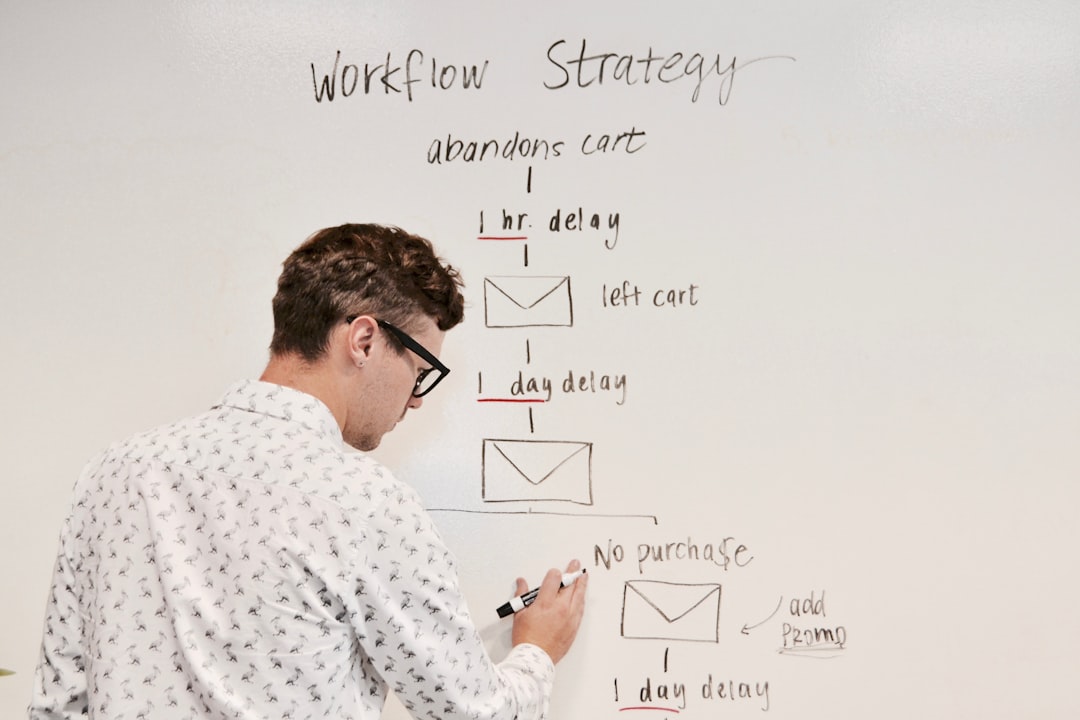
The workflow has four stages: trigger (new email arrives), classify (what kind of message is this?), respond (generate a draft or send directly), and route (log, notify, escalate). Here’s the flow at a glance:
- Gmail or Outlook trigger polls for new messages every 5 minutes (or webhook if you want near-realtime)
- A Claude call classifies the email into categories you define: support request, sales inquiry, spam, urgent escalation, etc.
- Based on classification, another Claude call drafts a response with your tone and context baked into the system prompt
- Responses either send automatically (low-risk categories) or get pushed to a Slack message / Google Doc for human approval
- Everything logs to a Google Sheet or Airtable for audit trail and prompt iteration
The approval gate is not optional if you’re handling customer-facing communication. I learned this after Claude confidently offered a refund that wasn’t in our policy. The classification was correct; the response was plausible but wrong. More on guardrails later.
Prerequisites and API Setup
You need: an n8n instance (self-hosted or n8n Cloud), an Anthropic API key, and access to Gmail or Outlook via OAuth. For n8n Cloud, the free tier limits you to 5 active workflows and 2,500 executions/month — fine for testing, not for a busy inbox. Self-hosting on a $6/month Hetzner VPS is what I’d actually recommend if you’re going to production.
Connecting Claude in n8n
n8n has a native Anthropic node as of version 1.22+. Go to Credentials → New → Anthropic, paste your API key, and you’re done. The node exposes model selection, max tokens, temperature, and system prompt fields directly in the UI — no custom HTTP request node needed.
For model selection: use claude-haiku-3-5 for classification (fast, cheap — roughly $0.001 per email classified) and claude-sonnet-3-5 for response drafting where quality matters more (~$0.003–0.008 per response depending on length). Don’t use Opus for this unless you’re drafting responses to enterprise contracts. The cost-to-quality curve isn’t worth it for most email use cases.
Building the n8n Workflow Step by Step
Step 1: Email Trigger Node
Add a Gmail Trigger node (or Microsoft Outlook Trigger for O365). Set it to poll every 5 minutes and filter on INBOX label only — you don’t want to process sent mail or drafts. Enable “Return All” as false and set a reasonable limit (25 messages per poll) to avoid flooding your Claude calls on first run.
Critical setting: check “Mark as Read” only after successful workflow completion, not on trigger. If your workflow errors midway, you don’t want emails silently disappearing from your inbox. Handle this with n8n’s error workflow instead.
Step 2: Data Extraction and Cleaning
Email bodies are messy. HTML tags, quoted reply chains, legal footers — all of this bloats your prompt and adds cost. Add a Code node between the trigger and Claude to strip it down:
// Strip HTML tags and quoted reply chains from email body
const body = $input.item.json.body || '';

// Remove HTML tags
let cleaned = body.replace(/<[^>]*>/g, ' ');

// Remove quoted reply chains (lines starting with > or common reply headers)
cleaned = cleaned.split('\n')
  .filter(line => !line.trim().startsWith('>'))
  .filter(line => !line.match(/^(On .* wrote:|From:|Sent:|To:|Subject:)/))
  .join('\n')
  .trim();

// Truncate to 2000 chars — enough context, controls token cost
const truncated = cleaned.substring(0, 2000);

return [{
  json: {
    ...($input.item.json),
    cleanBody: truncated,
    sender: $input.item.json.from,
    subject: $input.item.json.subject,
    messageId: $input.item.json.id
  }
}];
This preprocessing step alone cuts your token usage by 40–60% on typical business email threads.
Step 3: Classification with Claude Haiku
Add an Anthropic node and set the model to claude-haiku-3-5. The system prompt is the most important part — be explicit about your categories and output format:
You are an email classification system. Classify the incoming email into exactly ONE of these categories and return ONLY valid JSON.

Categories:
- SUPPORT: customer asking for help, reporting a bug, asking how something works
- SALES: prospect asking about pricing, features, or requesting a demo
- BILLING: invoice questions, payment issues, subscription changes
- SPAM: unsolicited marketing, irrelevant outreach
- URGENT: anything mentioning legal action, data breach, service outage, or executive names
- OTHER: doesn't fit above categories

Return format (JSON only, no other text):
{"category": "CATEGORY_NAME", "confidence": 0.0-1.0, "summary": "one sentence summary", "requires_human": true/false}

Mark requires_human as true if: confidence below 0.8, category is URGENT, or the email contains sensitive personal information.
In the message content field, use an expression: From: {{ $json.sender }}\nSubject: {{ $json.subject }}\n\n{{ $json.cleanBody }}
After this node, add a JSON Parse step (or use the Set node to extract fields from Claude’s text response). Claude Haiku is remarkably consistent with JSON output when you’re explicit in the prompt, but I’d still add a fallback: if JSON parse fails, route to URGENT and notify yourself.
Step 4: Routing with a Switch Node
Add a Switch node that branches on {{ $json.category }}. Create branches for each category. Any message where requires_human === true should route to your approval flow regardless of category — add this as a separate condition before category routing.
Step 5: Response Drafting with Claude Sonnet
For categories you want to auto-respond (typically SUPPORT and SALES at first), add another Anthropic node using claude-sonnet-3-5. Your system prompt here carries your brand voice, company context, and hard constraints:
You are a helpful support agent for [Company Name], a [brief description].

Your job is to write a professional, friendly email reply to the message below.

Guidelines:
- Keep responses under 150 words unless the question genuinely requires more
- Never promise specific timelines you can't guarantee
- Never offer refunds or credits without human approval — instead say "I'll escalate this to the team"
- Sign off as "The [Company] Team" — never as an individual name
- If you don't know the answer, say so and offer to escalate
- Match the formality level of the incoming email

Company context:
- Support hours: Monday-Friday 9am-6pm EST
- Our docs are at: docs.yourcompany.com
- For billing issues, direct to: billing@yourcompany.com
The message content: Original email:\nFrom: {{ $json.sender }}\nSubject: {{ $json.subject }}\n\nEmail body:\n{{ $json.cleanBody }}\n\nClassification: {{ $json.category }}\nSummary: {{ $json.summary }}
Step 6: Send or Queue for Approval
For auto-send: connect a Gmail Send node with reply-to set to the original message ID (this threads the reply correctly). Set To to {{ $json.sender }} and Subject to Re: {{ $json.subject }}.
For human approval: I use a Slack node that posts the draft to a private channel with the full proposed reply, two action buttons (Approve / Edit & Send), and a link to the original email. If you don’t want to build Slack interactivity, a simpler pattern: write the draft to a Google Doc or Notion page and notify via Slack — humans edit and send manually. Less automated, but far easier to set up and still saves significant time.
Guardrails That Actually Matter in Production
Three things that will bite you if you skip them:
Loop Prevention
Auto-responders responding to each other is a real failure mode. Before any response goes out, check that the sender is not your own email address and that the subject doesn’t start with “Re:” more than once (deep thread = human should handle). Add this check in a Code node before the send step.
Rate Limiting
If someone sends you 50 emails in an hour (spam burst or a very enthusiastic prospect), you’ll burn through API calls and potentially trigger Gmail’s sending limits. Add a Wait node with a 2-second delay between send operations, and use n8n’s built-in execution throttling at the workflow level.
Logging Everything
Write every execution to a Google Sheet: timestamp, sender, subject, classification, confidence score, whether it was auto-sent or queued, and the full draft. This is your dataset for prompt improvement and your audit trail when something goes wrong. It will go wrong. The log is how you fix it.
Real Cost Numbers
For an inbox receiving 200 emails/day with 60% handled autonomously:
- Classification (Haiku): 200 calls × ~500 tokens avg = ~$0.20/day
- Response drafting (Sonnet): 120 calls × ~800 tokens avg = ~$0.96/day
- Total Claude cost: roughly $35/month at current pricing
- n8n Cloud (Starter plan): $20/month
- All-in: ~$55/month for a system that handles 3,600+ emails/month autonomously
Compare that to a part-time virtual assistant at $500–800/month for the same volume. The math works. The ROI arrives in week one.
Who Should Build This and When to Stop
Build this if you’re a solo founder drowning in support email, a small team handling repetitive inbound, or a developer who wants to add automated triage to a client’s workflow. The setup time is real but bounded — 90 minutes to a working prototype, a few hours to production-ready.
Don’t fully automate if you’re in a regulated industry (legal, medical, financial) where auto-generated responses carry compliance risk, or if your email volume is under 30/day — the manual effort of setting this up won’t pay back quickly enough.
Start with the approval-gate version (everything goes to Slack for human review) and watch it run for a week. You’ll quickly see which categories Claude handles reliably and which it fumbles. Promote categories to auto-send only after you’ve seen 20+ correct drafts in a row. That’s the migration path from “assisted drafting” to a true n8n email automation Claude pipeline you can trust.
The workflow JSON for this setup is reusable — once you’ve built it for one inbox, cloning and reconfiguring for a second client or use case takes under 20 minutes. That’s where the real leverage is.
Editorial note: API pricing, model capabilities, and tool features change frequently — always verify current details on the vendor’s website before building in production. Code examples are tested at time of writing; pin your dependency versions to avoid breaking changes. Some links in this article may be affiliate links — we may earn a commission if you sign up, at no extra cost to you.